4 Gemini features most people miss, and how to use them
Canvas builds a slide deck you can export to Google Slides or a PDF. Gemini makes quizzes and flashcards from your notes, and turns a document into a podcast-style Audio Overview. Deep Research writes a report from many sources. Google's feature table marks all four as available without a Google AI plan.
What you need
| App | Gemini on the web at gemini.google.com, signed in with a Google Account |
|---|---|
| Cost | Google's feature table lists Canvas, quizzes and flashcards, Audio overviews and Deep Research as available without a Google AI plan. Usage limits apply |
| Age | Audio Overviews and Deep Research are not available to users under 18, Google's help pages say |
| Time | About a minute to start each one |
Step by step
Step 1: Canvas: ask for a slide deck
Go to gemini.google.com, click Add files, then Canvas, and describe the deck you want. Google's help page says to include the format in your prompt, such as a slide deck. To keep it, click Share & export at the top right of the Canvas panel, then Export to Slides. You can also export the slides as a PDF.
Step 2: Quizzes and flashcards: study from your notes
In the text box, tell Gemini what to create, then the material: "Create a quiz about" or "Create flashcards about". To use your own notes, click Add files first. Google's help page says a quiz has a Hint button and flashcards have Hint and Shuffle mode.
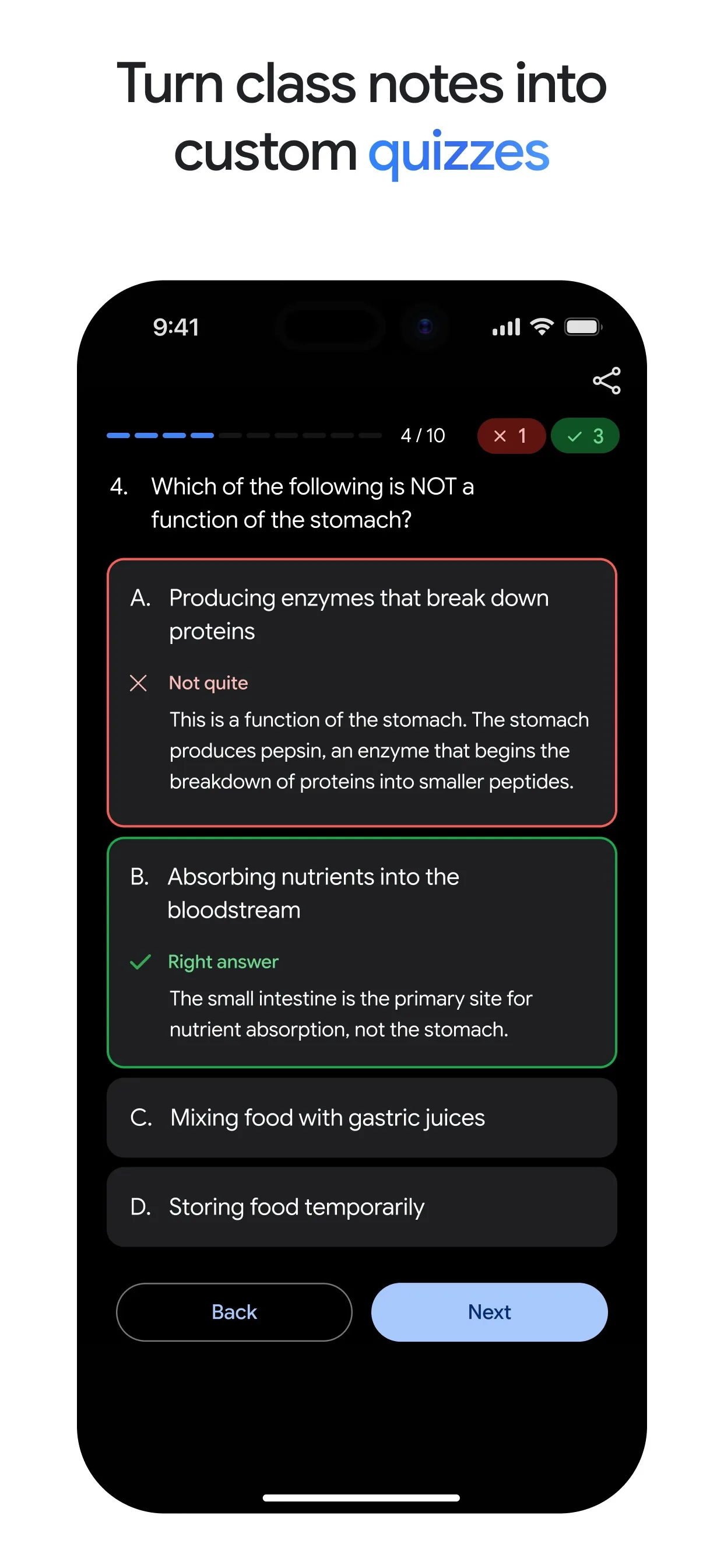
Image: Google Step 3: Audio Overviews: turn a document into a podcast
On gemini.google.com, click Add file, choose a document or slides, and ask Gemini to create an audio overview. Google's help page says it usually takes about 3 to 5 minutes, and you can start a new chat while you wait. When it is ready, click Play, or use More, then Download.
Step 4: Deep Research: a report on any topic
Click Add files, then Deep Research, and type your question. Gemini makes a research plan: click Edit plan to change it, then Start research. Google's help page says a report usually takes about 5 to 10 minutes, and that you must be 18 or over. Limits on daily requests apply, and Google says Deep Research may be unavailable at times of high demand.
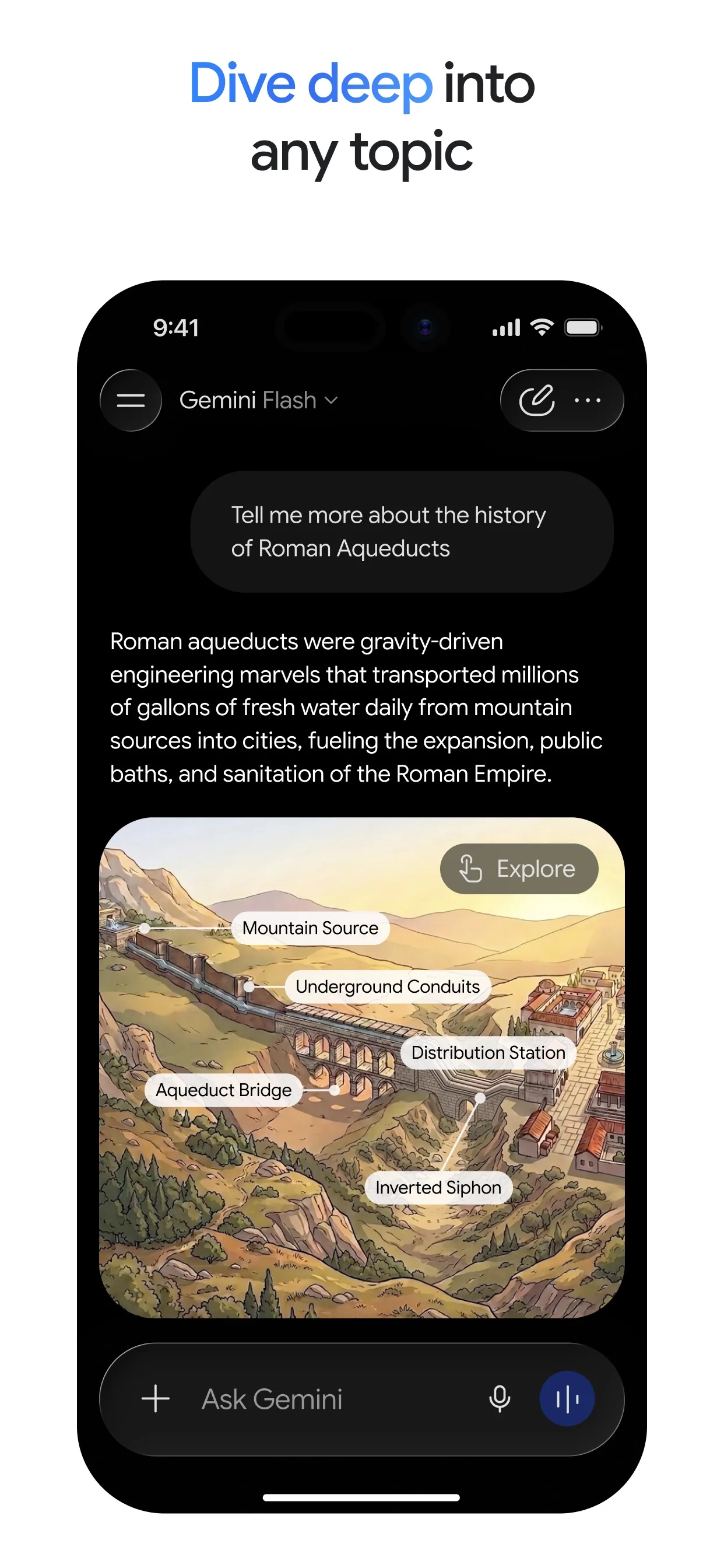
Image: Google
Common mistakes
- Expecting unlimited use. Google's help pages say Gemini has usage limits, and free users may find Deep Research unavailable when demand is high.
- Skipping the plan in Deep Research. Click Edit plan before Start research, so the report covers what you actually want.
- Trusting the answer without checking. Google's own page tells you to use your discretion before you rely on what Gemini creates.
Questions people ask
Are these Gemini features free?
Google's Gemini Apps limits page has a feature table. Canvas, Quizzes & flashcards, Audio overviews and Deep Research all have a checkmark in the Without a Google AI plan column. Usage limits apply.
Where do I find Canvas?
On gemini.google.com, below the text box, click Add files, then Canvas, according to Google's help page.
How long does an Audio Overview take?
Google's help page says it usually takes about 3 to 5 minutes, and you can leave the chat and start a new one while you wait.
Can children use these?
Google's help pages say Audio Overviews and Deep Research are not available to users under 18.
Checked against
- OfficialGemini Apps Help: Create docs, apps & more with Canvas
- OfficialGemini Apps Help: Create quizzes, flashcards, practice tests & more in Gemini Apps
- OfficialGemini Apps Help: Generate Audio Overviews in Gemini Apps
- OfficialGemini Apps Help: Use Deep Research in Gemini Apps
- OfficialGemini Apps Help: Gemini Apps limits & feature availability
AI apps change their buttons often. If a step no longer matches what you see, email hello@openloopnews.com and we will update this guide.